Image

In the quick moving universe of website development , the collaboration between version control systems and hosting platforms is paramount. GitHub has long been aleading platform for collaborative coding, while cPanel remains a mainstay for hosting management.This article is your compass on your onboarding journey and provides detailed information about connecting cPanel to GitHub repositories. Whether you're an individual developer looking for a streamlined workflow or part of a collaborative team, join us to discover how you can build a strong connection between your projects hosted on cPanel and the collaborative programming paradise GitHub.
Step 1
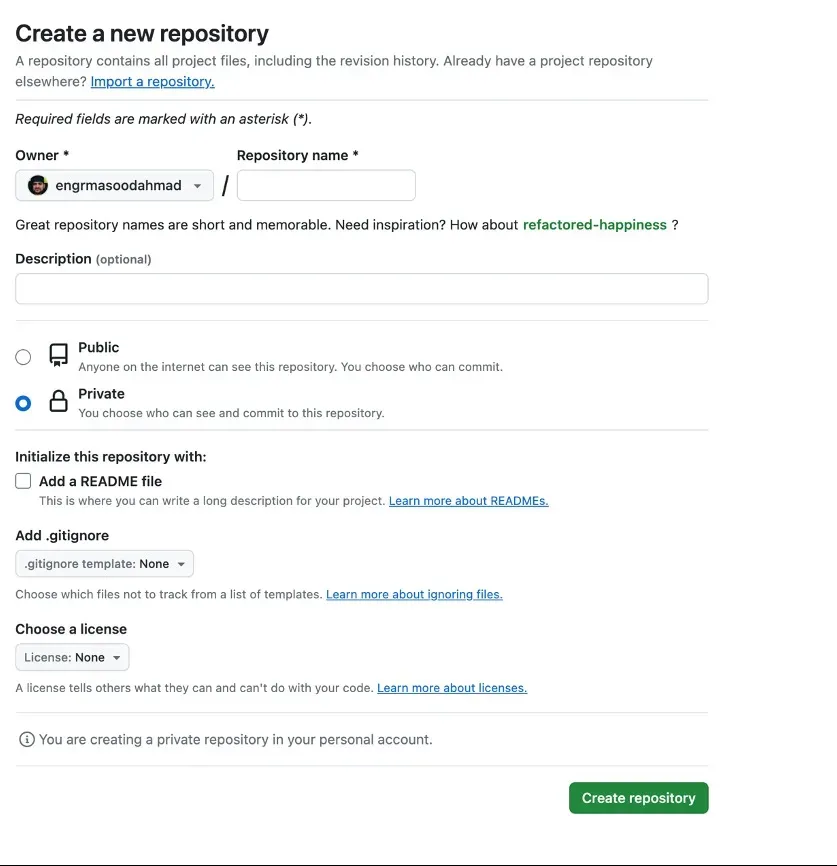
Create a repo in the GitHub by going to
github.com/new
Step 2
Add the git ignore file to your local repo.
Step 3
Link your local repo to the GitHub repo with following commands.
git remote add origin REMOTE-URLNow to check, whether connected or not, run
git remote -vand then run (but make sure you have committed all your changes in local)
git push -u origin mainStep 4
Connecting your local terminal with cPanel server (Not necessary if cPanel has terminal)
a) Create SSH keys
ssh-keygen -t rsab) Showing the content of your key in terminal
cat ~/.ssh/id_rsa.pubAdding SSH key to the cPanel to connect through.
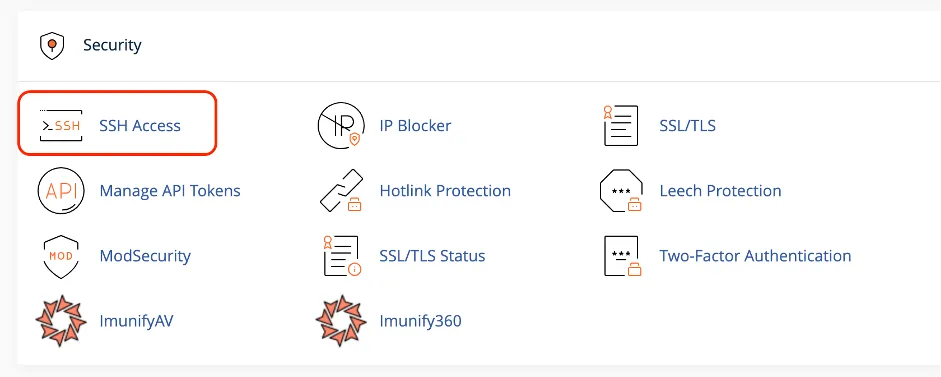
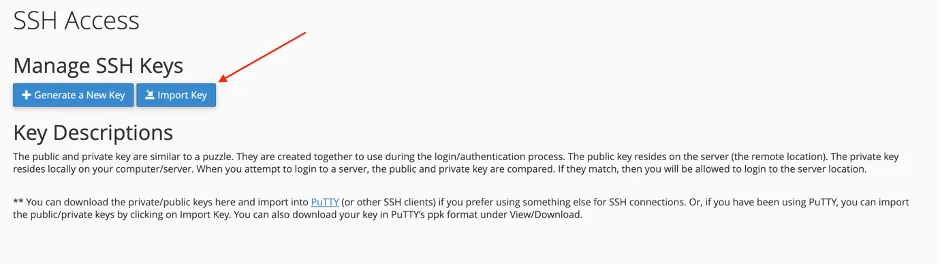
to SSH Access > Manage SSH Keys > Import Key
Next
Inside the bottom box where “Paste the public key in the following text box” is written – paste your key from terminal
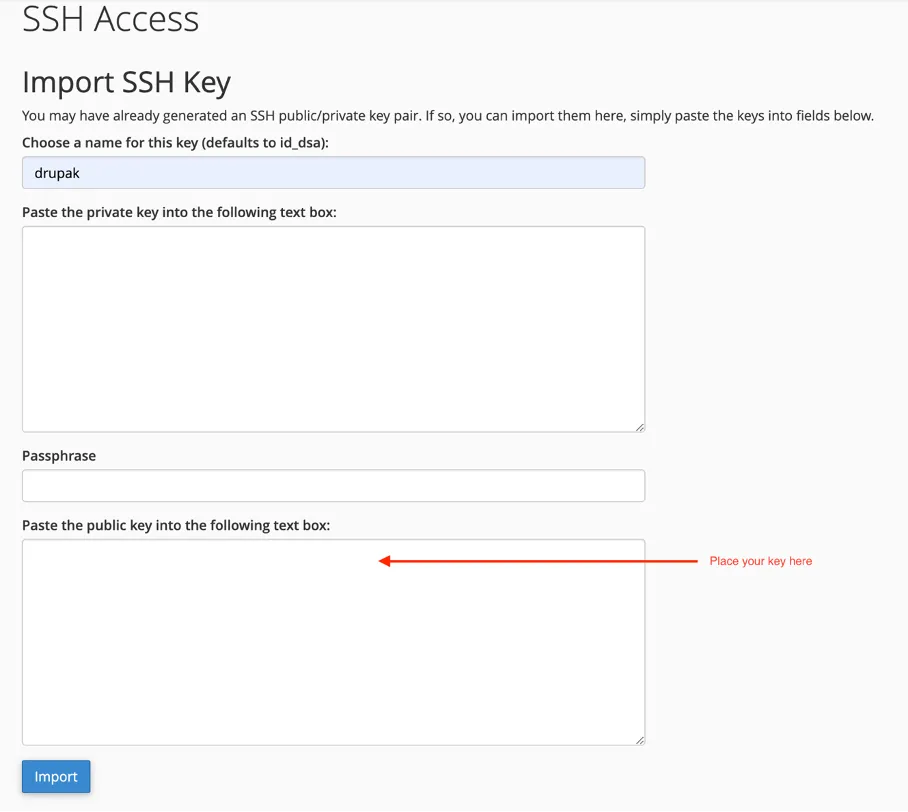
Import it and authorize it
Now in your local terminal add the following command
ssh yourLoginUserName@domainName.com
Domain Name means Your FTP host name (often it is the domain name)
c) Give command pwd to check it has been logged in.
Step 5
Creating the SSH key on the cPanel, that will be used to transfer data from GitHub to cPanel.
a) In your terminal (recently connected) add the following command
ssh-keygen -t rsa -b 4096 -C userNameOfCpanel@domainName.comLeave the file name and passphrase empty
In your SSH Access > Manage SSH Keys – you will see the newly created keys.
Authorize it.
Step 6
Connecting the GitHub
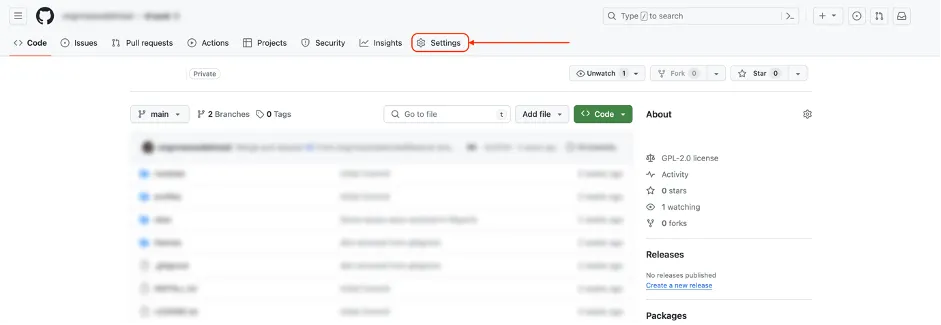
a) In your Repo click on the Settings tab at the top bar, (if not present – you are not authorized)
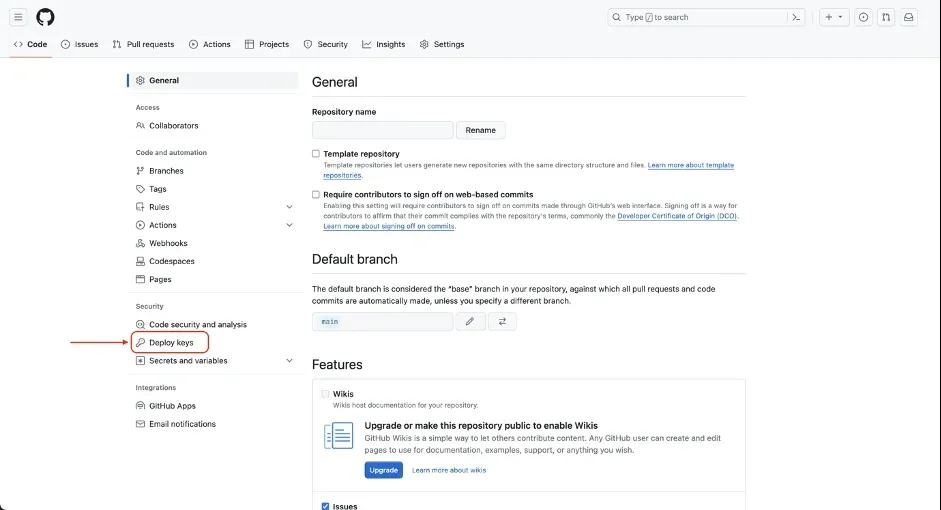
b) On the left tab, click on the Deploy keys
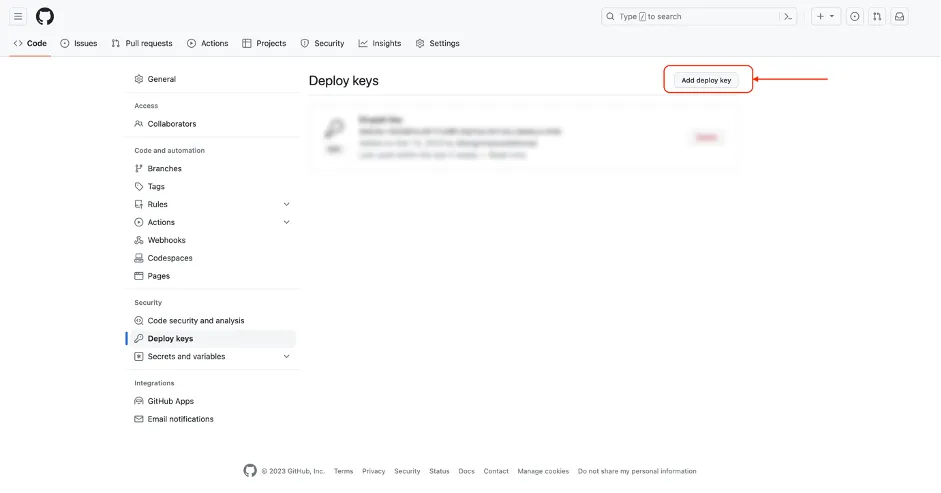
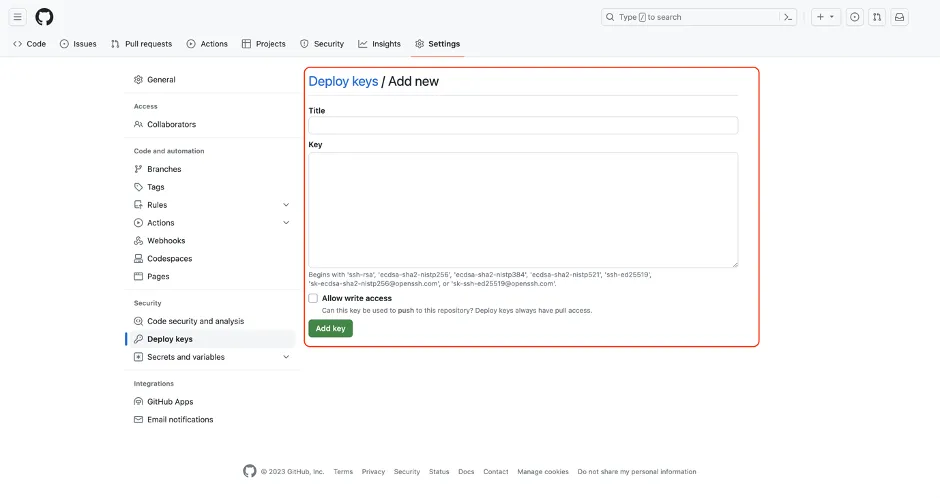
c) Copy the key content from cPanel and paste it here, and just give it some suitable name (to the key)
d) In your terminal add the following command to check if the GitHub is connected or not
ssh -T git@github.comStep 7
Cloning Repo from GitHub
a) Copy the repo URL using SSH from the GitHub.
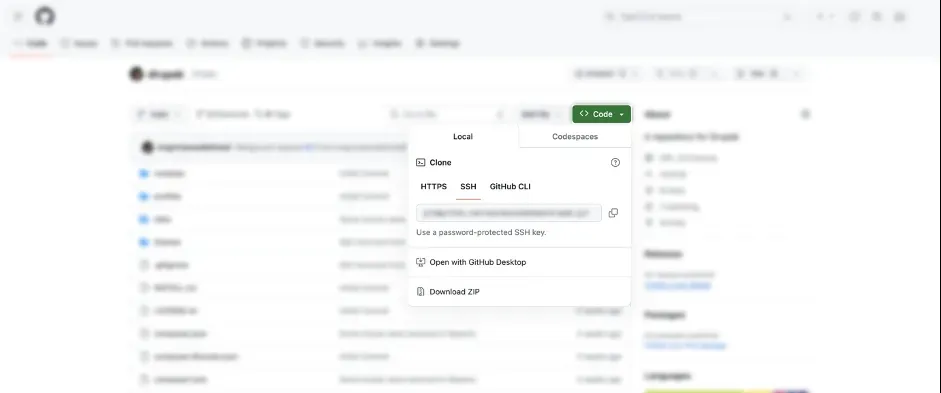
b) In cPanel > Git Version Control > Create a new repo
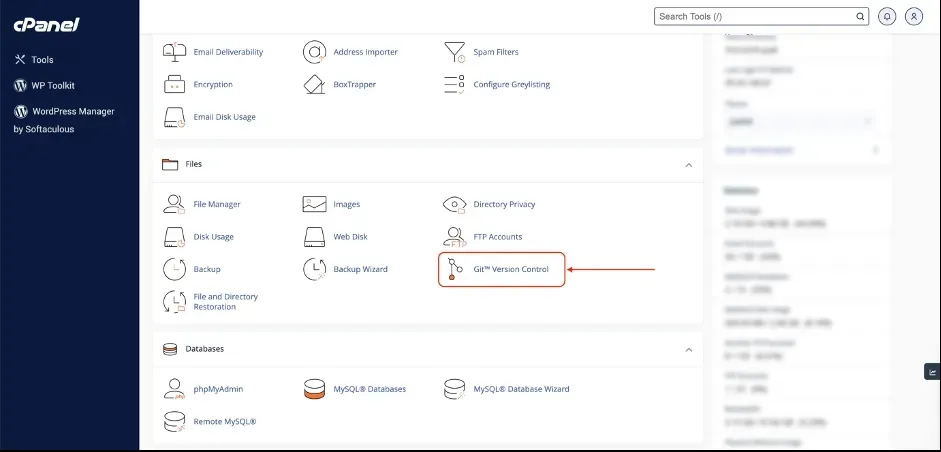
Next
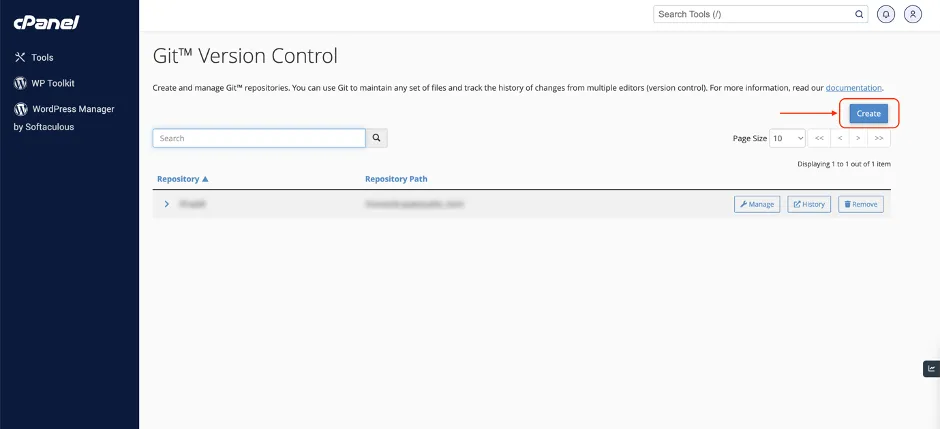
c) Paste the URL to the clone URL input field in cPanel (new repo)
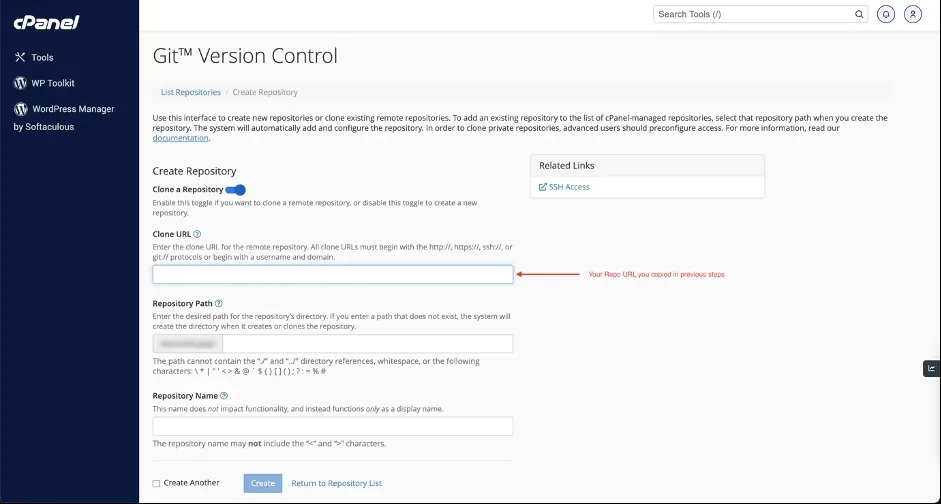
d) In the Path if you want to add public_html it will give an error, because there are hidden files, you should either delete all those or create a new folder and then redirect your root to there. I emptied the public_html and added the /public_html there.
e) Click create to create the Repo
f) You will be redirected to the GitHub repo listings. Click on the Manage there.
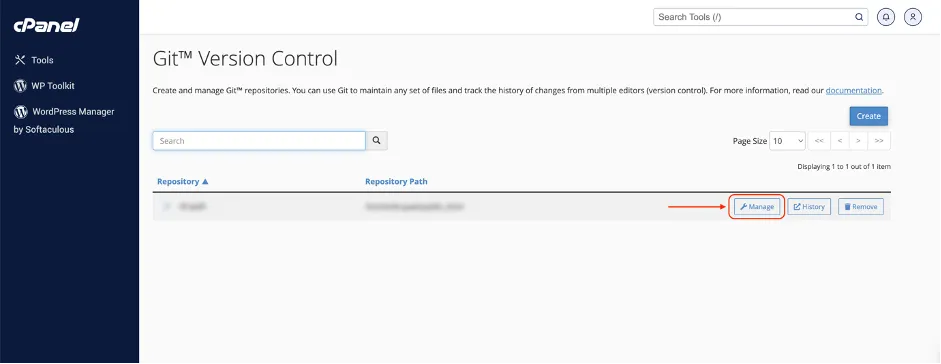
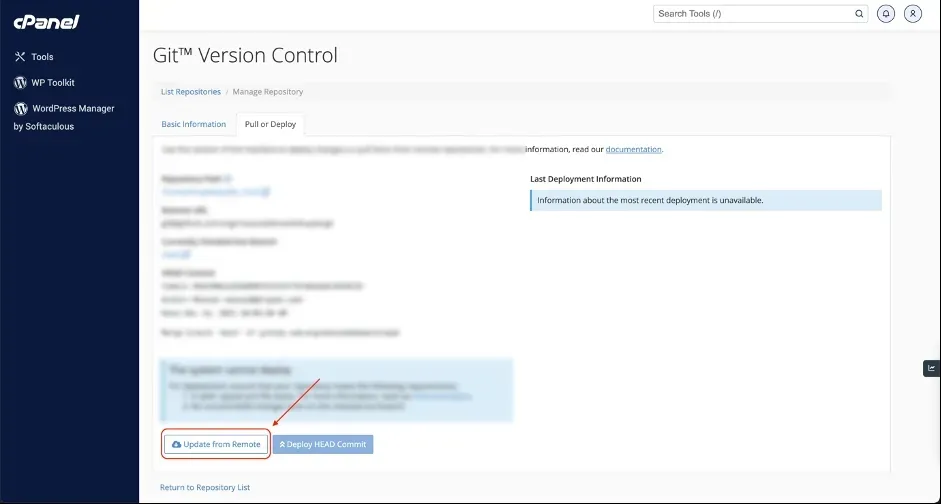
g) Click on Pull and Deploy tab. And update from Remote, if there are changes else, the buttons will be disabled.
Step 8
Necessary commands to up the site
In root, open the terminal and run composer install Link the DB from settings.php Add the files in the respective folder in web/sites/ You can access Drush with vendor/bin/drush And that’s it. -:)

Masood
Drupal Developer.